

It is Tuesday afternoon and you notice something. The replies going out to interested leads all end with a statement. You are fairly sure they would convert better if they ended with a question. You know exactly what to change.
In most teams, knowing is the easy part. If the workflow already exists, it lives with an engineer, a consultant or an agency. So you ask, they build the change, test it and publish it, and the next day you learn the new version could be better still. If it does not exist yet, you are the workflow: you send those replies by hand, between everything else.
Skills and workflows evolve every day. The people who see what to change are the ones doing the job: SDRs, rev ops, sales leaders. They should be able to change it themselves.
Claude already gave you and your team the first half. You write the Skills, you sharpen them, you use them daily. This post is about the second half: letting those same people run the workflow, with no code, no workflow builder to learn and no consultant. The Sales Automation Playbook for Claude walks through it across the sales cycle, with the exact prompt for each workflow. It keeps growing.
Claude does not need to get smarter at this. It needs two things a chat window does not give it.
The first is a trigger. Claude runs when you ask. Claude's own scheduler is a real step forward, because it can fire a prompt on a timer, say every morning at 8. But a signature, a reply or a call ending is not a time of day. It is an event, and it happens in another app. You want the work to start when it happens, not at the next tick of a clock and not when you remember to ask.
The second is the chain. A reply sounds like one task. It is a sequence: catch the reply, qualify it, create the deal in your CRM, answer the lead or brief your rep. A scheduler can fire one prompt. It cannot carry one reply through all of that, retry the step that failed, and log what happened so your team can see it.
Those are two separate walls. Clear only one and you are still back in the chat window.

Automation is not a project you finish. It is a process you keep improving. So the question that matters is not how fast you can build the first version. It is how fast the person who spots an improvement can ship it.
If that person has to go through an engineer, every change is a round trip: ask, build, test, publish, wait. If that person can change it themselves, the round trip disappears.

That gap compounds. A team that sharpens its replies every week learns faster than a team that does it once a quarter. Faster roll-out is the first benefit. The bigger one is quality, because a sales process that improves more often tends to convert better. That is the goal.
Everybody who can write a clear prompt can now automate a sales workflow. No code. No workflow builder to learn. No consultant. No engineer in the loop.
That changes who owns the process. An SDR can rewrite the reply. Rev ops can add a step. Your sales leader can tighten the qualification rules. Workflows are shared with your team once they are built, so the process belongs to the function, not to whoever wrote the first prompt, and the next hire does not need the process explained again.
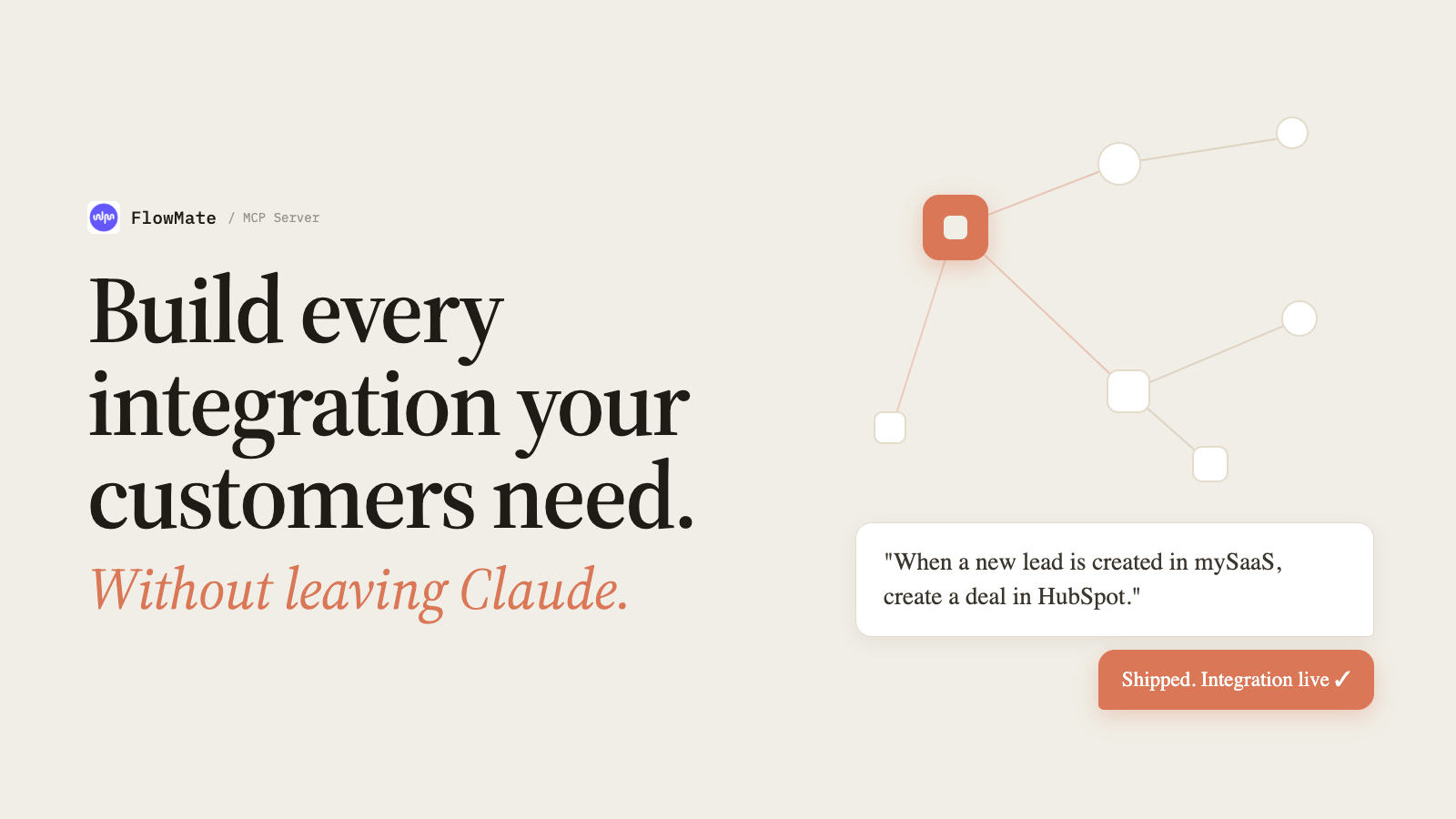
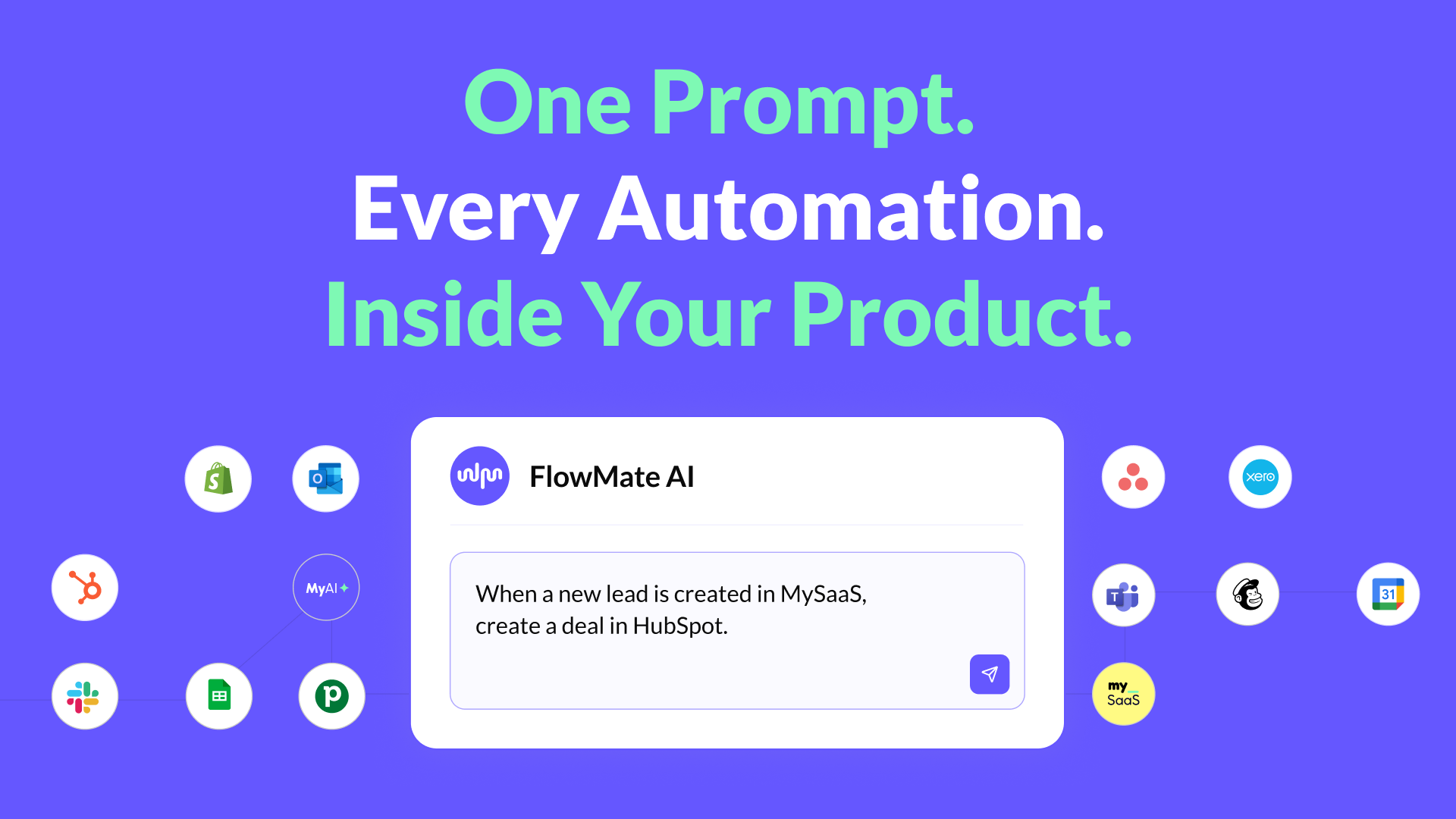
Add FlowMate to Claude and it can run your workflows on its own. You connect it once and describe a workflow in plain language. It builds the workflow and runs it across your apps, with an Agent wherever a judgment call is needed. No code, no workflow builder to learn, no instance to host.
Routine jobs run on their own. You approve what matters.
To start, you sign up and paste an activation prompt into Claude.
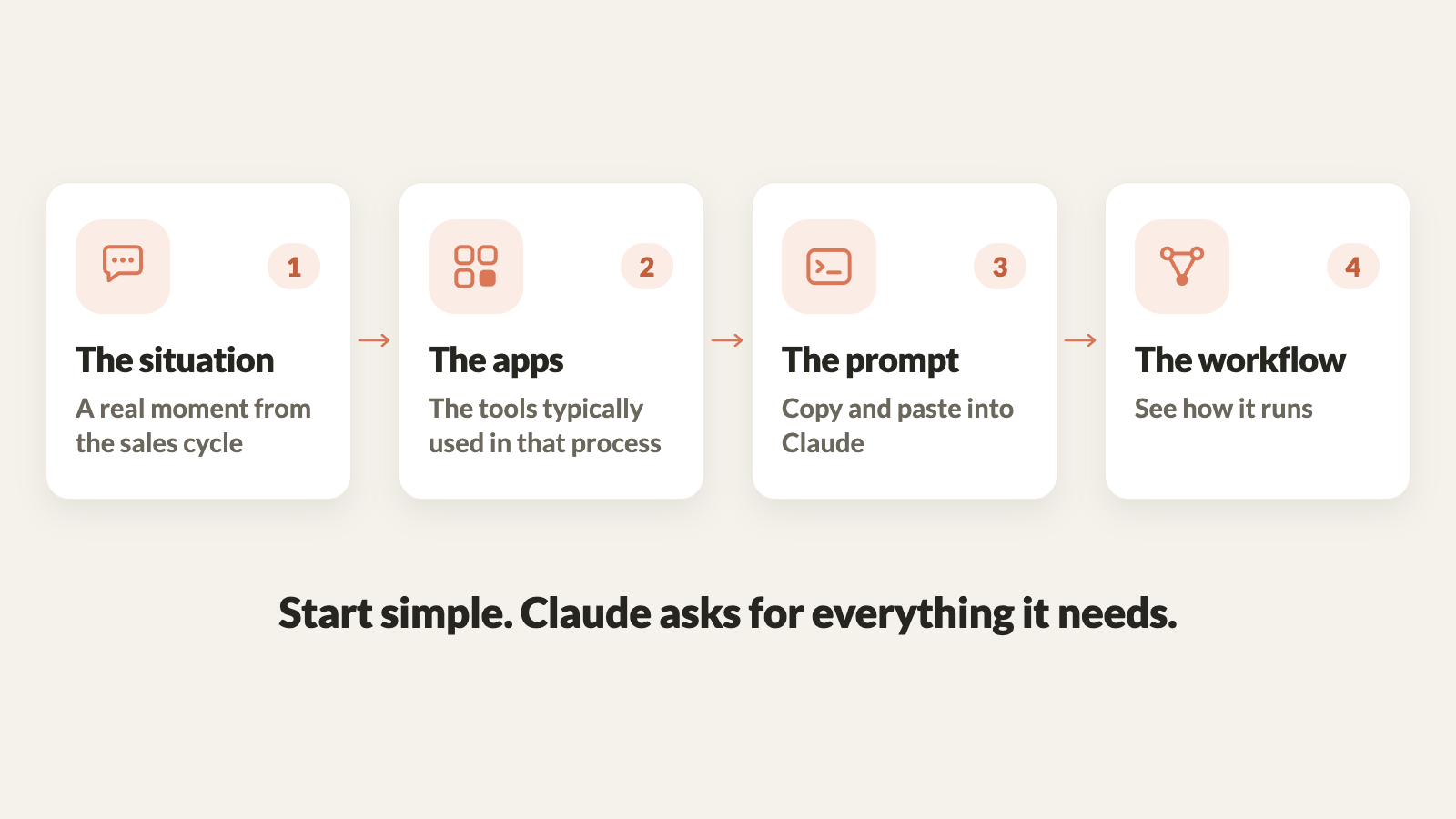
The playbook gives you ideas for improving your daily work, one workflow at a time. Each chapter describes a real situation from the sales cycle, shows the apps typically used in that process, and gives you the exact prompt to copy and paste into Claude.
If your team uses other apps than the ones shown, FlowMate typically adds them on demand. You just ask in Claude.
From the prompt, Claude guides you through the building process step by step. Start simple. Claude asks for everything it needs to know along the way. Every use case also links to a detailed workflow page that shows how it runs.
New use cases are added every week, based on what our customers adopt in their daily business.
Open the playbook and a pattern shows up. Every workflow has the same shape: an event in one app, an Agent that makes the call using your Skill, and an action in at least one other app. The apps change. The shape does not. Here are some of the workflows in the playbook.
Take the Agent out and you have a data transfer. Leave it in and the workflow does work that used to need you.
Start with what you can do today without FlowMate. Connect your apps to Claude and run the prompt by hand. That is the proving ground, and every workflow in the playbook starts there.
When you want it to run on its own, add FlowMate and describe the workflow to Claude once:

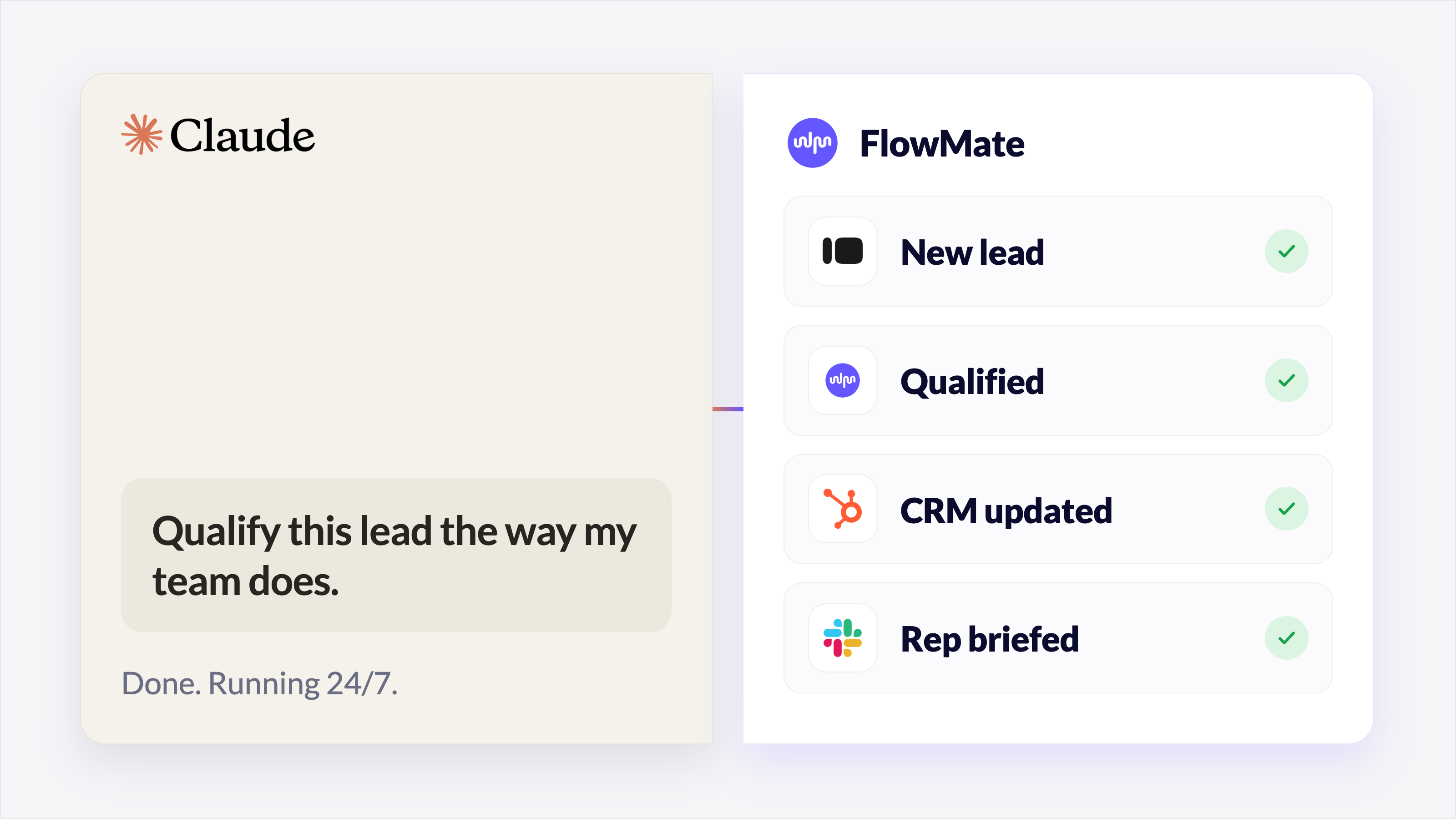
Running it in FlowMate, the chain looks like this:
Now back to your Tuesday. You open your Lead Response Skill in Claude and change the closing so replies end on a question. A Claude Skill and a FlowMate Agent are separate objects, so one more prompt to Claude brings the Agent in line with the updated Skill. It is not automatic sync, and it is not a rebuild. The next reply goes out the new way, and you did not need anyone's help.
Tomorrow you might change it again. That is the point. You decide what runs on its own and what you approve.
If you already sharpen your prompts and Skills in Claude, you have done the hard part. The Skill exists. The judgment is yours. What is left is the trigger, the chain and the log, and the person who changes it tomorrow is you.
Grab the prompts from the Sales Automation Playbook for Claude, run them by hand, and when one earns its place, let it run. The Pioneer Program gives you the full Team plan free for 90 days, no credit card required. Start free.
Do I really not need an engineer? Not to build a workflow and not to change one. You connect FlowMate to Claude once and describe what should happen.
When I improve a Skill, does the automation change on its own? Not automatically. Your Skill and the Agent built from it are separate objects. Creating the Agent takes one prompt to Claude, and bringing it back in line after an update takes one more. There is nothing to rebuild.
Who on the team can change a workflow? Workflows are shared with the team once they are built, so the process belongs to the function and not to one person. Who can change what follows the rules and permissions you set.
Claude has its own scheduler now. Why would I need anything else? A scheduler fires a prompt on a timer, which suits a daily digest. A signature or a reply is an event, not a time of day. Carrying one event through several apps, retrying the step that failed and logging the result for your team is a different job.
Is it really real time? Where an app supports webhooks, a workflow starts the moment the event happens. Where it does not, triggers are checked every few minutes, so the event is picked up within a few minutes.
What if the Agent gets a call wrong? Set the workflow to wait for your approval and nothing happens until you give it. Every run is also logged: what triggered it, what it did, what came back and where it failed. You can see what happened without asking anyone.